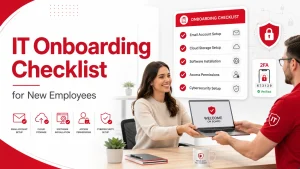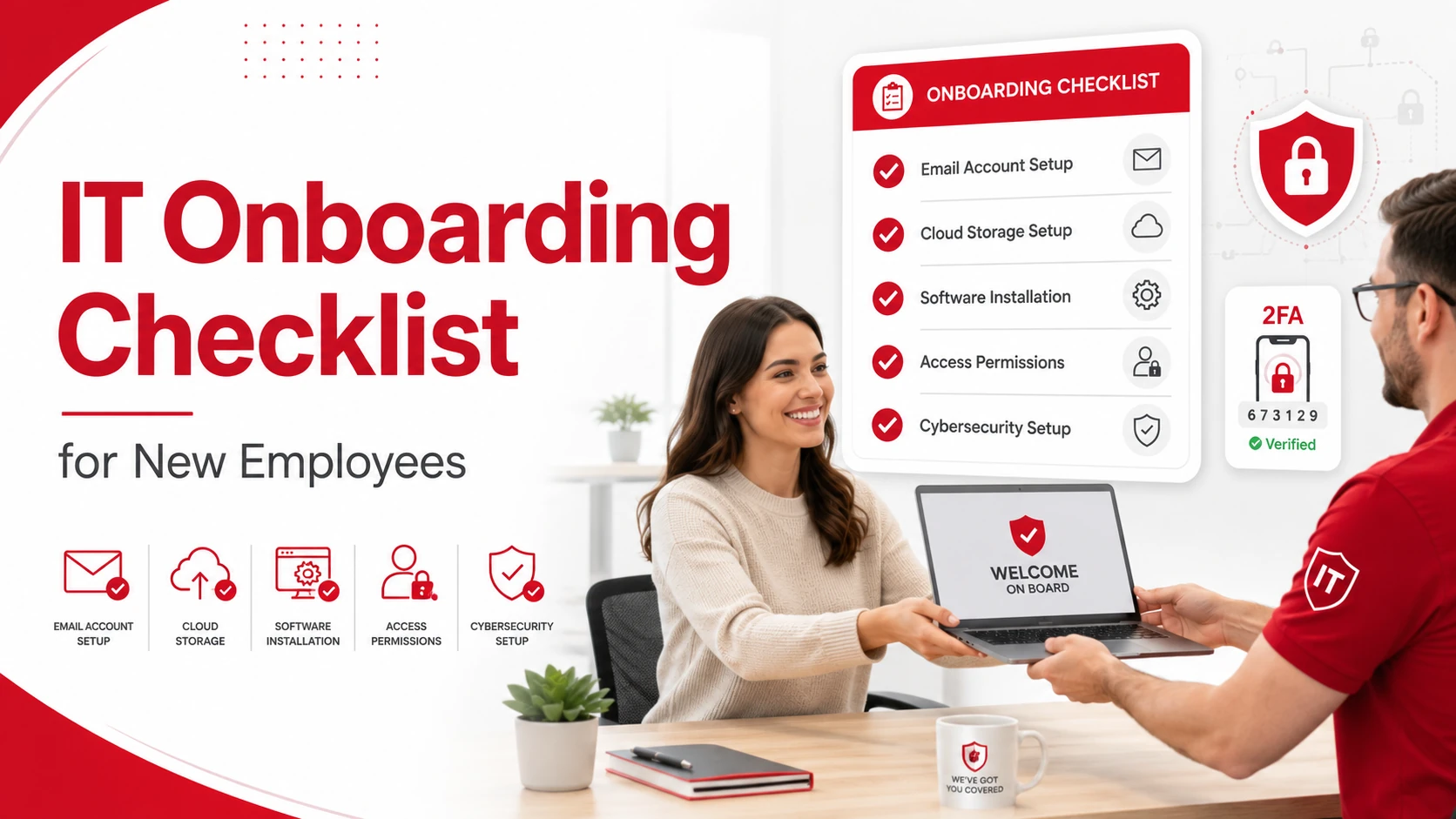
An IT onboarding checklist helps new employees get the devices, accounts, software, access, and security training they need before they start work. It also helps businesses avoid delays, login issues, security gaps, and confusion during a new hire’s first few days.
For small businesses, IT onboarding should be simple, organized, and secure. The goal is to make sure every new employee can work productively without giving them more access than they actually need.
Key Takeaways
- IT onboarding prepares new employees with the right devices, accounts, software, and permissions before their start date.
- A clear checklist helps reduce login issues, support tickets, and first-week delays.
- New employees should only receive access to the systems they need for their role.
- Cybersecurity training, password setup, multi-factor authentication, and device security should be part of every onboarding process.
- Small businesses can use managed IT services to make onboarding more consistent, secure, and easier to manage.
What Is IT Onboarding?
IT onboarding is the process of setting up a new employee’s technology before and during their first days at work. This includes preparing their computer, email, software, user accounts, security settings, shared drives, cloud tools, and communication apps.
A strong IT onboarding process helps the employee start smoothly. It also protects the business from common risks such as weak passwords, improper access, missing security controls, and unmanaged devices.
Why IT Onboarding Matters
New employees often need access to several systems right away. Without a clear process, they may lose time waiting for logins, software approvals, or device setup.
IT onboarding matters because it helps businesses:
- Reduce first-day technology issues
- Improve employee productivity
- Protect sensitive company data
- Standardize device and software setup
- Avoid unnecessary access permissions
- Lower the number of preventable IT support requests
A good onboarding process also supports better security. New employees should understand how to use company systems safely, recognize suspicious emails, and follow basic cybersecurity rules from the beginning. For more guidance, Adivi’s guide on cybersecurity best practices for business explains why employee training, access control, and software updates matter.
IT Onboarding Checklist for New Employees
Use this checklist to prepare new employees before their first day and guide them through their first week.
1. Confirm the Employee’s Role and Technology Needs
Before setting up anything, confirm the employee’s job title, department, manager, work location, and start date.
Then identify what technology they need, such as:
- Laptop or desktop
- Monitor, keyboard, mouse, or headset
- Business phone or mobile device
- Email account
- Microsoft 365 or Google Workspace access
- Department-specific software
- Shared folders or cloud storage
- VPN or remote access
- Printer or network access
This step helps IT set up only what the employee needs for their role.
2. Prepare the Employee’s Device
The employee’s computer should be ready before their first day. This helps avoid delays and creates a better first impression.
Device setup may include:
- Installing the operating system updates
- Adding required business software
- Installing antivirus or endpoint protection
- Setting up device encryption
- Connecting the device to company management tools
- Testing the camera, microphone, and internet connection
- Labeling and recording the device in the company asset list
Businesses with multiple employee devices may also benefit from mobile device management to simplify device enrollment, security settings, and remote management.
3. Create User Accounts
New employees need the right accounts to access company systems. These should be created before the start date whenever possible.
Common accounts include:
- Company email
- Microsoft 365 or Google Workspace
- Chat and communication tools
- Project management software
- CRM or customer service platforms
- Accounting, HR, or industry-specific software
- Password manager
- VPN or remote access tools
If your team uses Microsoft tools, Adivi’s guide on what Microsoft 365 is used for can help explain how it supports email, collaboration, file storage, and daily productivity.
4. Set Up Access Permissions
New employees should only receive access to the files, apps, and systems required for their job. This is often called the principle of least privilege.
Access setup may include:
- Department folders
- Shared drives
- Cloud storage
- Internal systems
- Client files
- Financial or HR tools
- Admin dashboards
- Remote access permissions
Avoid giving broad access just to make onboarding faster. Proper access control helps protect sensitive business data and reduces the risk of accidental exposure.
For businesses handling confidential information, data loss prevention can also help monitor, classify, and protect sensitive data across email, cloud apps, endpoints, and storage systems.
5. Set Up Passwords and Multi-Factor Authentication
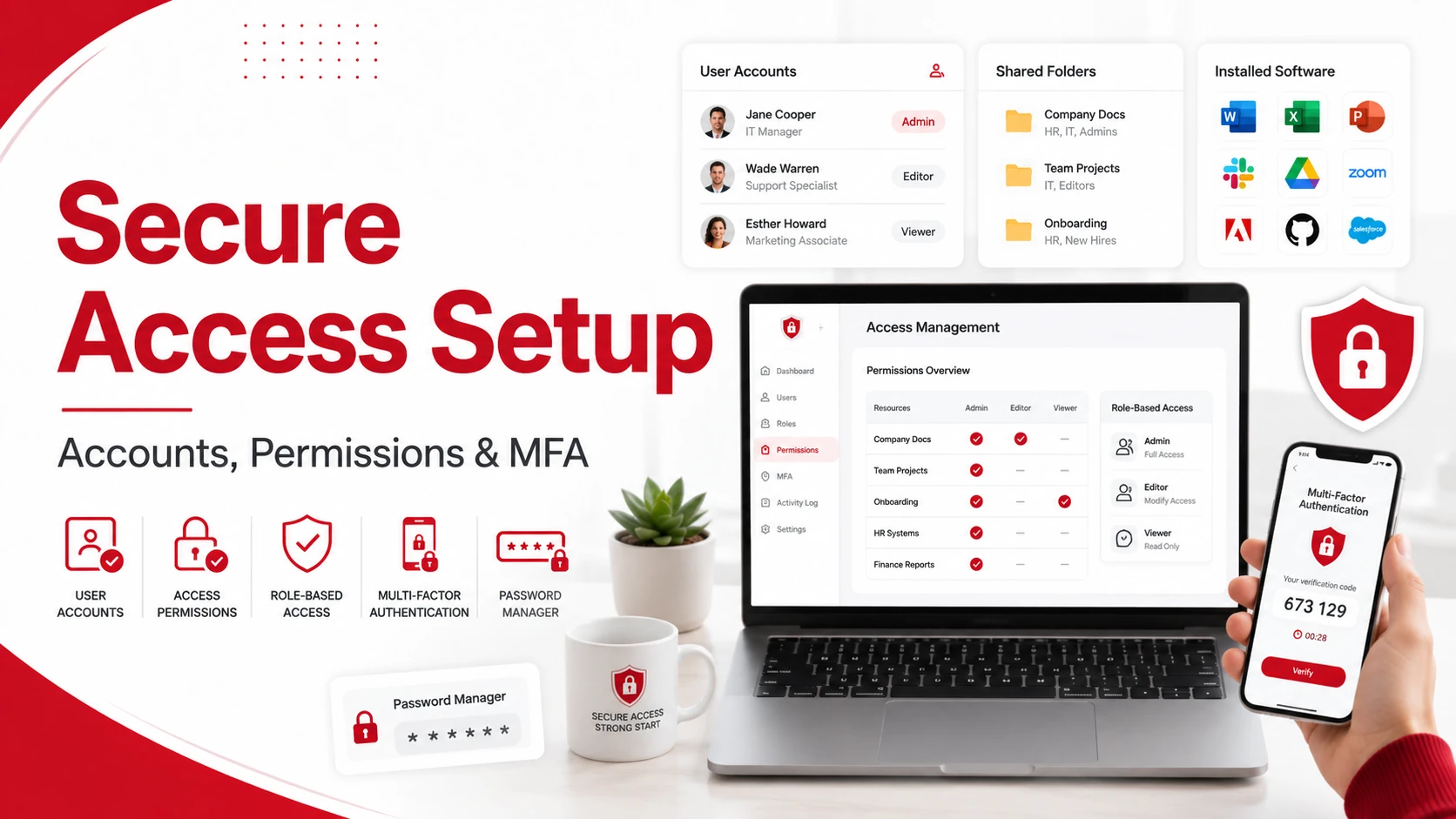
Passwords and account security should be handled early in the onboarding process.
Make sure the employee:
- Creates a strong password
- Uses a company-approved password manager
- Enables multi-factor authentication
- Avoids reusing personal passwords
- Knows how to report suspicious login attempts
Multi-factor authentication adds another layer of protection if a password is stolen or guessed. It is especially important for email, cloud platforms, remote access, and systems that store sensitive information.
6. Install and Test Required Software
Before the employee starts, install and test the software they need for their role.
This may include:
- Email and calendar tools
- Microsoft Office apps
- Cloud storage apps
- Communication tools
- Video meeting software
- Security software
- Department-specific programs
- Browser extensions or internal tools
Testing software before the first day helps reduce unnecessary IT requests. If recurring setup issues are common, businesses may also want to review how to reduce IT support tickets through better documentation, training, and proactive support.
7. Set Up Cloud Storage and File Sharing
Employees should know where files are stored, how to access them, and how to share them securely.
During onboarding, explain:
- Which folders they can access
- Where to save work files
- How to share documents internally
- What files should not be shared externally
- How to request additional access
- What to do if a file is missing or deleted
Secure file sharing is important because employees often handle documents, client information, and internal files from their first week. Adivi’s guide on secure file sharing explains how businesses can support collaboration while protecting sensitive data.
8. Provide Cybersecurity Training
Every new employee should receive basic cybersecurity training as part of onboarding.
Training should cover:
- How to spot phishing emails
- How to create strong passwords
- Why multi-factor authentication matters
- How to handle sensitive data
- What to avoid when using public Wi-Fi
- How to report suspicious activity
- Company rules for personal devices and file sharing
This training does not have to be long. The most important part is helping employees understand their role in protecting the business.
For stronger protection, small businesses can also work with cybersecurity services and solutions to build safer access controls, endpoint protection, monitoring, and response plans.
9. Review Backup and Recovery Procedures
New employees should understand how company data is protected and where files should be stored.
Explain:
- Which files are backed up
- Where employees should save work
- What not to store locally
- How deleted files may be recovered
- Who to contact if data is missing
This step is especially important for businesses that rely on client records, project files, financial documents, or shared cloud folders. A reliable data backup and disaster recovery plan helps protect important data if devices fail, files are deleted, or systems are affected by cyber threats.
10. Schedule a First-Week IT Check-In
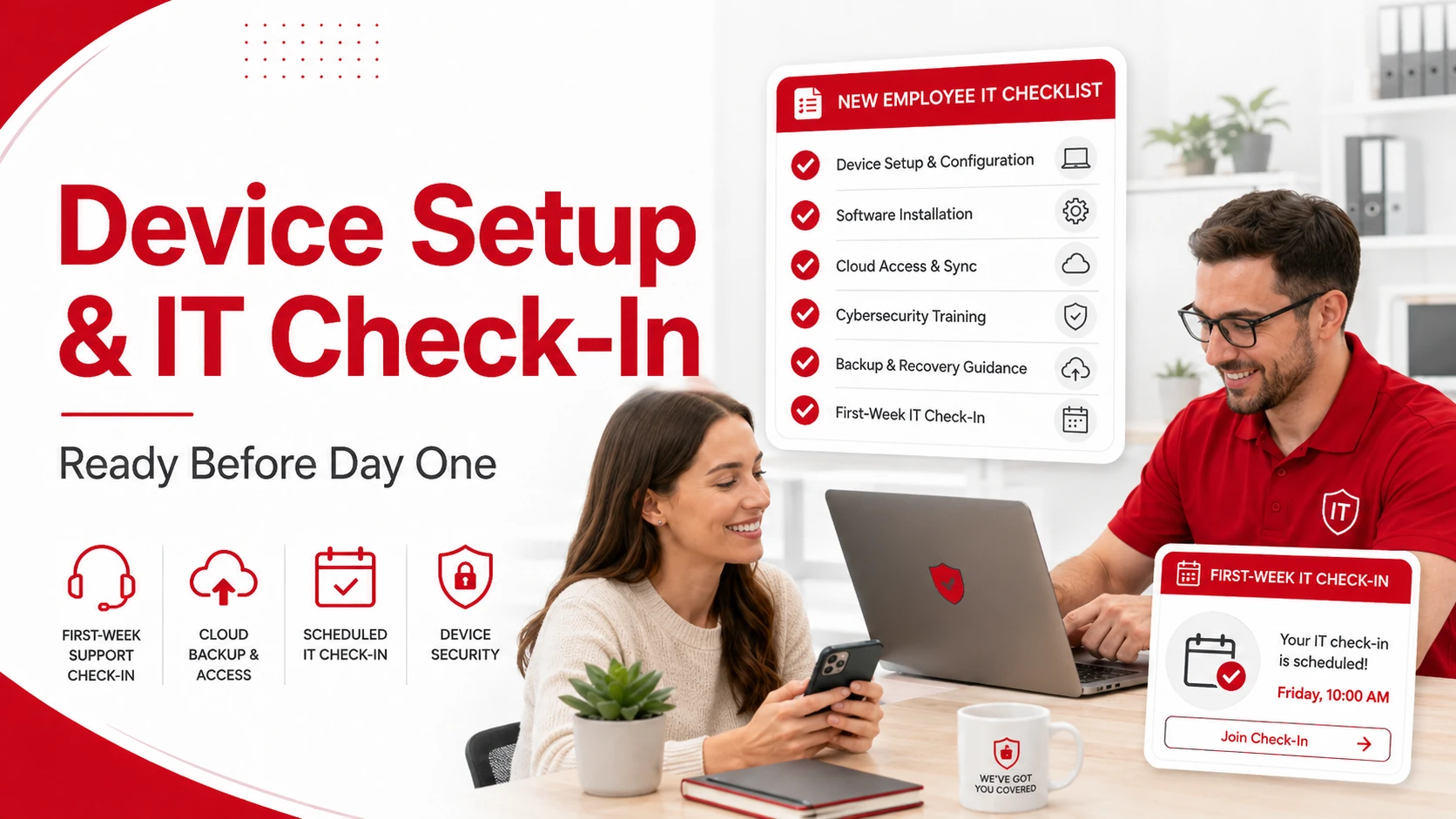
IT onboarding should not end after the employee receives their login details. Schedule a short check-in during the first week to make sure everything works.
Ask the employee:
- Can you access your email and calendar?
- Are all required apps working?
- Do you have the right folder permissions?
- Is your device running properly?
- Do you understand security rules?
- Are there any login or software issues?
This helps catch problems early before they slow the employee down.
IT Onboarding Checklist at a Glance
| Task | What to Check |
|---|---|
| Confirm the employee’s role | Department, manager, work location, and start date |
| Identify technology needs | Required devices, software, accounts, and access |
| Prepare the employee’s device | Updates, security tools, encryption, and testing |
| Create user accounts | Email, cloud platforms, communication tools, and business apps |
| Assign access permissions | Only the files and systems required for the employee’s role |
| Enable password security | Password manager, strong passwords, and MFA |
| Install required software | Productivity, communication, security, and role-specific tools |
| Set up cloud storage | Folder access, file-sharing rules, and storage locations |
| Provide cybersecurity training | Phishing, password safety, data handling, and reporting procedures |
| Explain backup procedures | Where to save files and how lost data may be recovered |
| Record assigned equipment | Add laptops, phones, and accessories to the asset inventory |
| Schedule an IT check-in | Confirm access, software, permissions, and device performance |
Common IT Onboarding Mistakes to Avoid
Even small onboarding mistakes can create security risks or productivity issues.
Avoid these common mistakes:
- Waiting until the first day to create accounts
- Giving employees too much system access
- Forgetting to enable multi-factor authentication
- Not testing software before the start date
- Skipping cybersecurity training
- Failing to document assigned devices
- Not explaining file storage and backup rules
- Leaving access decisions unclear between HR, managers, and IT
A structured checklist helps prevent these issues and keeps onboarding consistent.
How Managed IT Services Can Help With IT Onboarding
Small businesses may not always have enough internal IT resources to manage onboarding smoothly. A managed IT provider can help standardize the process and make sure each new employee is set up correctly.
Managed IT support can help with:
- Device setup
- Account creation
- Software installation
- Security configuration
- Microsoft 365 support
- Cloud access
- Backup planning
- Help desk support
- First-week troubleshooting
Businesses that need more reliable support can use managed IT services to make employee onboarding faster, safer, and easier to manage.
For businesses using more cloud-based tools, cloud computing services can also help support remote access, collaboration, software management, and secure cloud storage.
Final Thoughts
IT onboarding is more than giving a new employee a laptop and email account. It is a structured process that helps employees start work smoothly while protecting company systems, devices, and data.
A strong IT onboarding checklist should cover devices, accounts, software, permissions, security training, cloud access, and backup procedures. When the process is clear, new employees can become productive faster, and the business can reduce avoidable IT issues from the start.
FAQs About IT Onboarding
What is IT onboarding?
IT onboarding is the process of setting up a new employee’s devices, accounts, software, access permissions, and security tools before they begin work.
Why is IT onboarding important?
IT onboarding is important because it helps new employees work smoothly, reduces first-week technical issues, and protects business systems from access and security risks.
What should be included in an IT onboarding checklist?
An IT onboarding checklist should include device setup, account creation, software installation, access permissions, password setup, multi-factor authentication, cybersecurity training, and backup guidance.
Who is responsible for IT onboarding?
IT onboarding is usually handled by the IT team, managed IT provider, HR, and the employee’s manager. Each group should know what they are responsible for before the employee starts.
How can small businesses improve IT onboarding?
Small businesses can improve IT onboarding by using a standard checklist, setting up accounts before the start date, limiting access by role, training employees on cybersecurity, and working with a managed IT provider when needed.