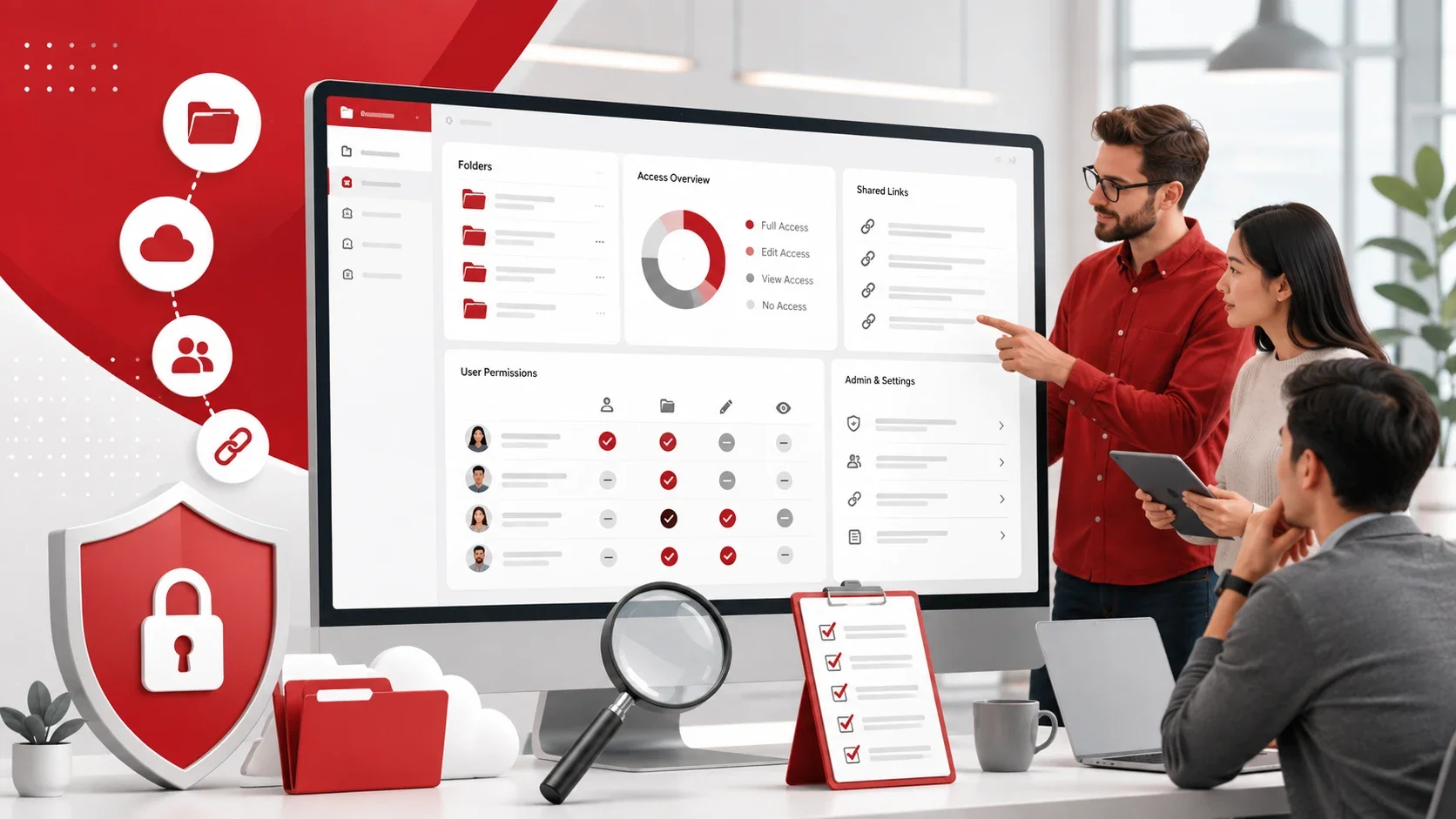
A file sharing permissions audit is a review of who can access, edit, download, or share business files across cloud storage, shared drives, email, and collaboration tools. It helps your business find public links, former employee access, outdated vendor permissions, and sensitive files that may be exposed.
For small businesses, this audit should be simple, regular, and practical. The goal is to make sure the right people have the right access, without slowing down everyday work.
Key Takeaways
- A file sharing permissions audit helps your business see who can access important files.
- It can uncover public links, outdated users, former employee access, and over-permissioned accounts.
- Employees should only have the access they need for their role.
- Managed IT services can help small businesses clean up permissions and improve file security.
Why File Sharing Permissions Matter
File sharing makes daily work easier, but weak permissions can expose sensitive business information. A single public link, shared folder, or forgotten account can give the wrong person access to private files.
Common risks include:
- Public file links
- Files shared with personal email accounts
- Former employees keeping access
- Vendors or users having more access than they need
Using secure file sharing practices can help your business protect files while still allowing employees to collaborate.
What to Include in a File Permissions Audit
A complete audit should review every place where business files are stored or shared. This may include cloud storage, shared drives, email platforms, messaging apps, project management tools, and backup systems.
You should also review internal users, external users, admin accounts, public links, and sensitive files such as customer records, financial documents, contracts, employee files, and legal documents.
File Sharing Permissions Audit Checklist
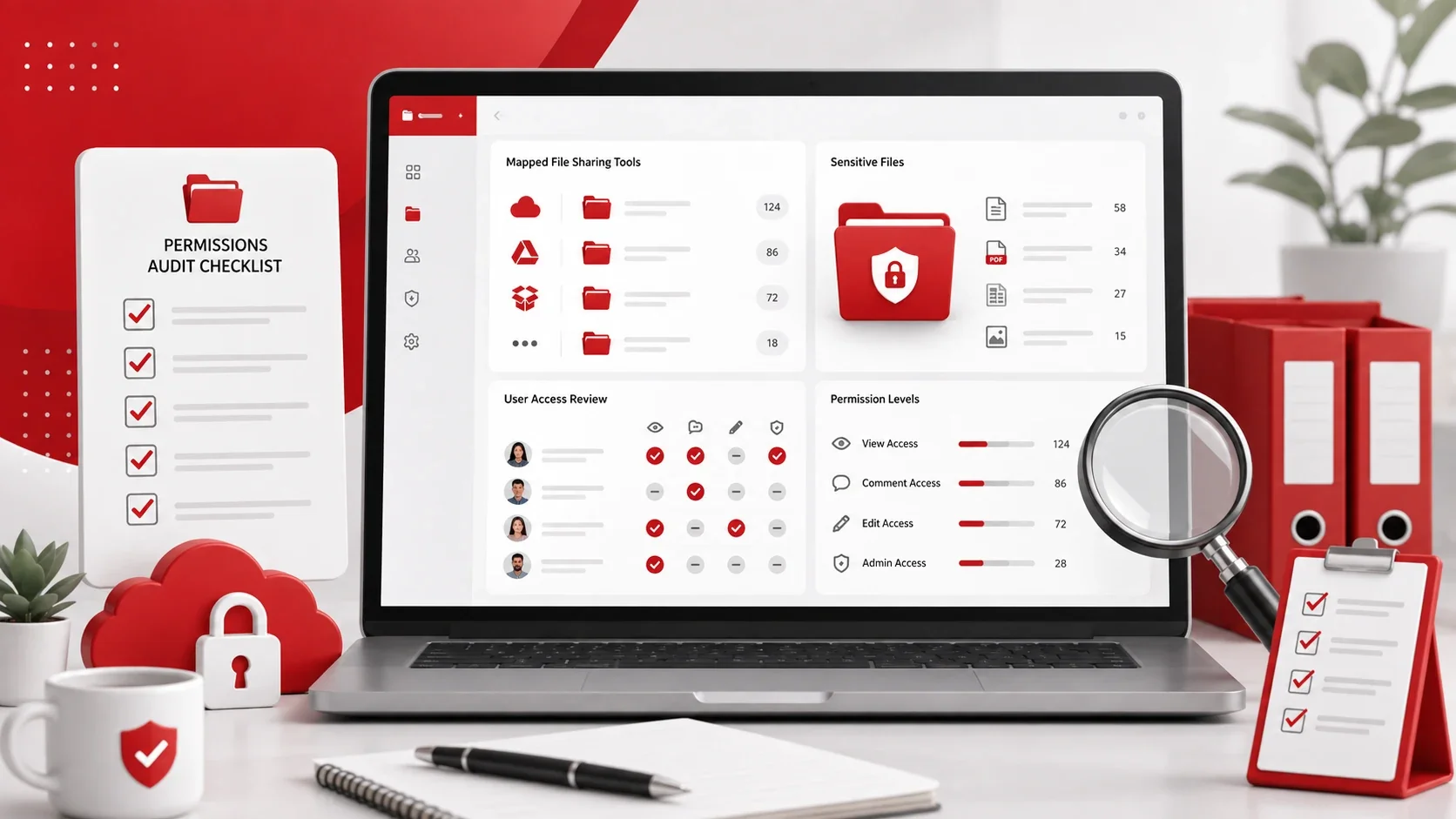
Use this checklist to review and clean up file access across your business.
1. Map Your File-Sharing Tools
Start by listing every platform where employees store or share files.
This may include:
- Microsoft OneDrive or SharePoint
- Google Drive or Dropbox
- Email attachments and shared drives
- Messaging apps, project management tools, or client portals
If your business uses several cloud tools, cloud computing services can help organize storage, access, and security settings.
2. Find Sensitive Business Files
Not all files need the same level of protection. Start by identifying files that would create risk if they were shared with the wrong person.
Sensitive files may include:
- Customer data and financial records
- Employee documents and contracts
- Legal files and confidential reports
- Passwords, credentials, or internal business plans
Once these files are identified, you can apply stronger controls around them.
3. Check Internal User Access
Review which employees can access important files and folders. Confirm that each person still needs access based on their current role.
Look for users who have:
- Access to folders outside their department
- Edit access when view-only is enough
- Permissions from a previous role
- Access through old groups or shared folders
The safest approach is to give employees only the access they need to do their job.
4. Remove Outdated Accounts
Former employees, past contractors, and old vendors should not keep access to company files.
Check for:
- Former employee accounts
- Inactive accounts
- Old contractor or vendor access
- Temporary users or shared accounts with no clear owner
Removing outdated access reduces the risk of accidental exposure, unauthorized access, and data misuse.
5. Clean Up Public Links
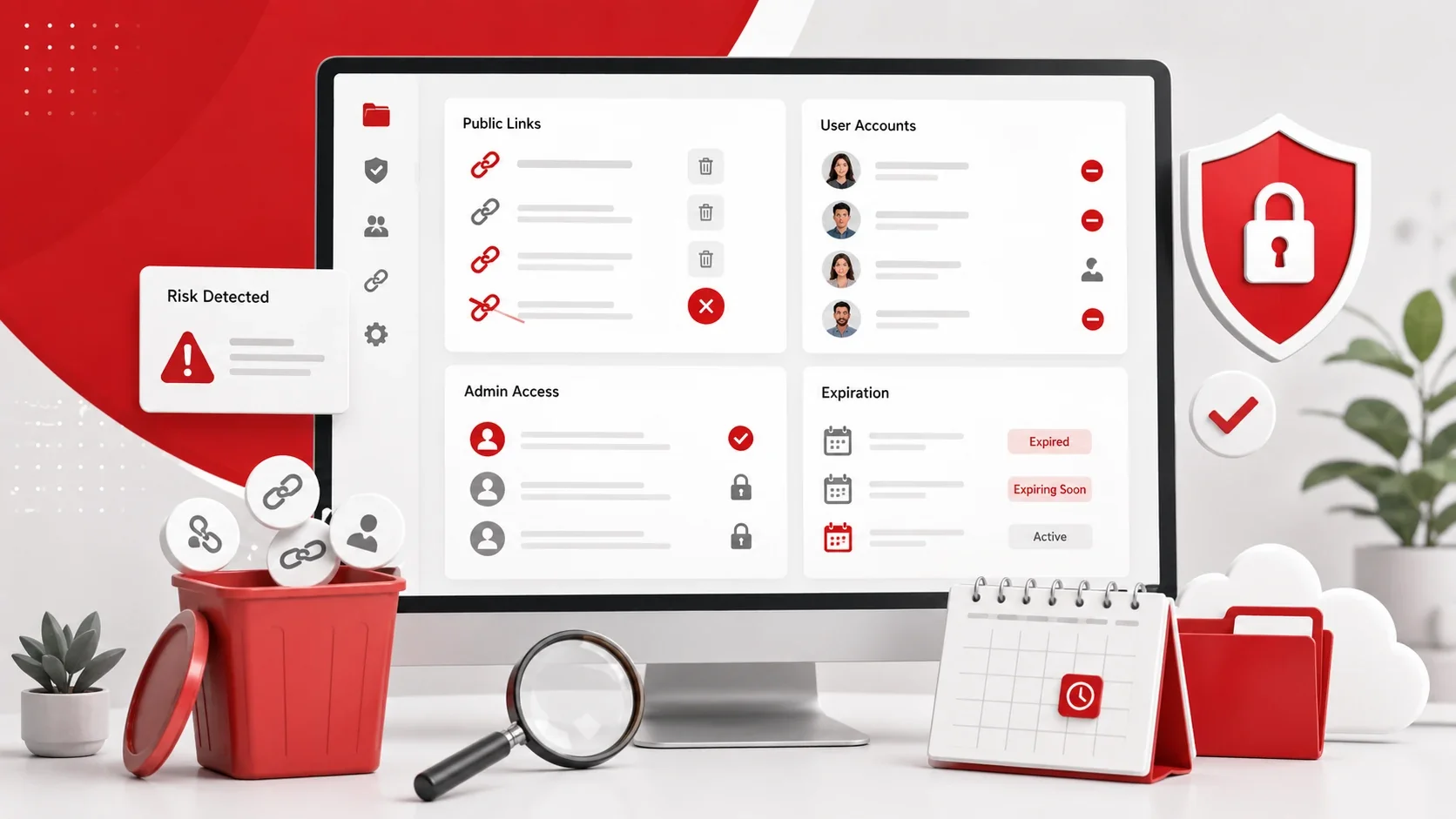
Public links can be risky because anyone with the URL may be able to open the file. During the audit, review files and folders shared through public links.
Check whether each link:
- Is still needed
- Should be changed to private access
- Should be view-only or password-protected
- Should expire on a set date
Disable public links that are no longer necessary.
6. Set Role-Based Permission Levels
Different users need different levels of access. Not every employee needs edit, download, share, or admin permissions.
Common permission levels include:
- View
- Comment
- Edit
- Admin
Use the lowest permission level that still allows the employee to complete their work. For example, a client may only need view access, while a department manager may need edit access.
7. Limit Admin Controls
Admin access should only be given to trusted users who truly need it. Too many admin accounts can create security risks.
Review:
- Who has admin access
- Whether admin access is still needed
- Whether MFA is enabled for admin users
- Whether shared admin accounts should be removed
Admin accounts should be reviewed more often than standard user accounts.
8. Add Expiration Dates
Shared links and temporary access should not stay active forever. Use expiration dates for files shared with clients, vendors, contractors, or temporary project teams.
This is especially helpful for:
- Client files
- Vendor projects
- Temporary collaboration folders
- External review links
Expiration dates reduce the chance of old links remaining open after they are no longer needed.
9. Turn On Multi-Factor Authentication
Multi-factor authentication, or MFA, helps protect accounts even if a password is stolen or guessed.
MFA should be required for:
- Email accounts
- Cloud storage and file-sharing tools
- Admin accounts
- Remote access systems
For stronger protection, businesses can also use cybersecurity services and solutions to improve account security, access controls, and threat protection.
10. Use Data Loss Prevention Tools
Data loss prevention, or DLP, helps detect and reduce risky sharing of sensitive information. It can warn or block users when they try to send confidential data through email, cloud storage, or file-sharing tools.
DLP can help protect:
- Customer records
- Financial data
- Employee files
- Legal or sensitive business documents
Adivi’s guide on data loss prevention explains how DLP helps protect data across email, cloud platforms, devices, and shared storage.
11. Record Permission Changes
A file permissions audit should leave a clear record of what was reviewed and changed.
Document:
- Which files or folders were reviewed
- Which users were removed
- Which links or permissions were changed
- Who approved the changes and when the next review should happen
This makes future audits easier and helps your team stay accountable.
12. Set a Regular Review Schedule
File sharing permissions should be reviewed regularly. Do not wait for a security issue before checking access.
A small business should review permissions:
- Quarterly
- When an employee leaves or changes roles
- When a vendor project ends
- After adding new cloud tools or after a security incident
Regular reviews help keep access clean and reduce unnecessary risk.
Common Permission Mistakes to Avoid
Avoid these file sharing mistakes:
- Giving everyone edit access
- Leaving public links active
- Forgetting to remove former employees
- Sharing full folders instead of specific files
These mistakes are common, but they can usually be fixed with a simple, consistent review process.
How Managed IT Services Can Help
Small businesses may not always have time to review file sharing permissions manually. A managed IT provider can help clean up access, secure cloud storage, and create safer sharing processes.
Managed IT support can help with:
- User access reviews and public link cleanup
- Cloud storage permissions and secure file sharing setup
- MFA setup and DLP tools
- Backup planning and ongoing monitoring
A strong data backup and disaster recovery plan can also help protect important files if they are deleted, corrupted, or affected by a cyberattack.
Final Thoughts
A file sharing permissions audit helps your business protect sensitive files, remove outdated access, and reduce data exposure. It does not need to be complicated. Start by reviewing your tools, users, shared links, admin accounts, and sensitive files.
When permissions are reviewed regularly, employees can still collaborate while your business keeps better control over its data.
FAQs About File Sharing Permissions
What is a file sharing permissions audit?
A file sharing permissions audit is a review of who can access, edit, download, or share business files across cloud storage, shared drives, email, and collaboration tools.
How often should businesses audit file sharing permissions?
Small businesses should review file sharing permissions at least quarterly, or whenever employees leave, change roles, or new vendors are added.
What permissions should be reviewed?
Businesses should review internal users, external users, public links, shared folders, admin access, edit access, download permissions, and old vendor access.
Why are public file links risky?
Public links can allow anyone with the URL to access a file. If the link is forwarded or exposed, sensitive data may be seen by the wrong person.
How can managed IT services help with file permissions?
Managed IT services can help review access, remove outdated permissions, secure cloud storage, enable MFA, set up DLP tools, and monitor file sharing risks.