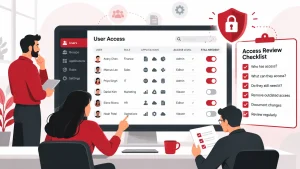
Businesses rely on user accounts to give employees access to applications, systems, and company data. However, employee roles change, people leave the company, and permissions can remain in place long after they are needed.
A user access review helps businesses confirm who has access, what they can access, and whether that access is still appropriate. Using a regular user access review checklist can help identify inactive accounts, excessive permissions, and outdated access before they create security problems.
Key Takeaways
- Review active accounts to confirm they belong to current users.
- Check whether permissions match each employee’s current role.
- Remove unnecessary permissions and inactive accounts.
- Pay close attention to administrator and other high-level privileges.
- Document access changes and perform reviews regularly.
What Is a User Access Review?
A user access review is the process of checking user accounts and permissions to determine whether people still need the access they have.
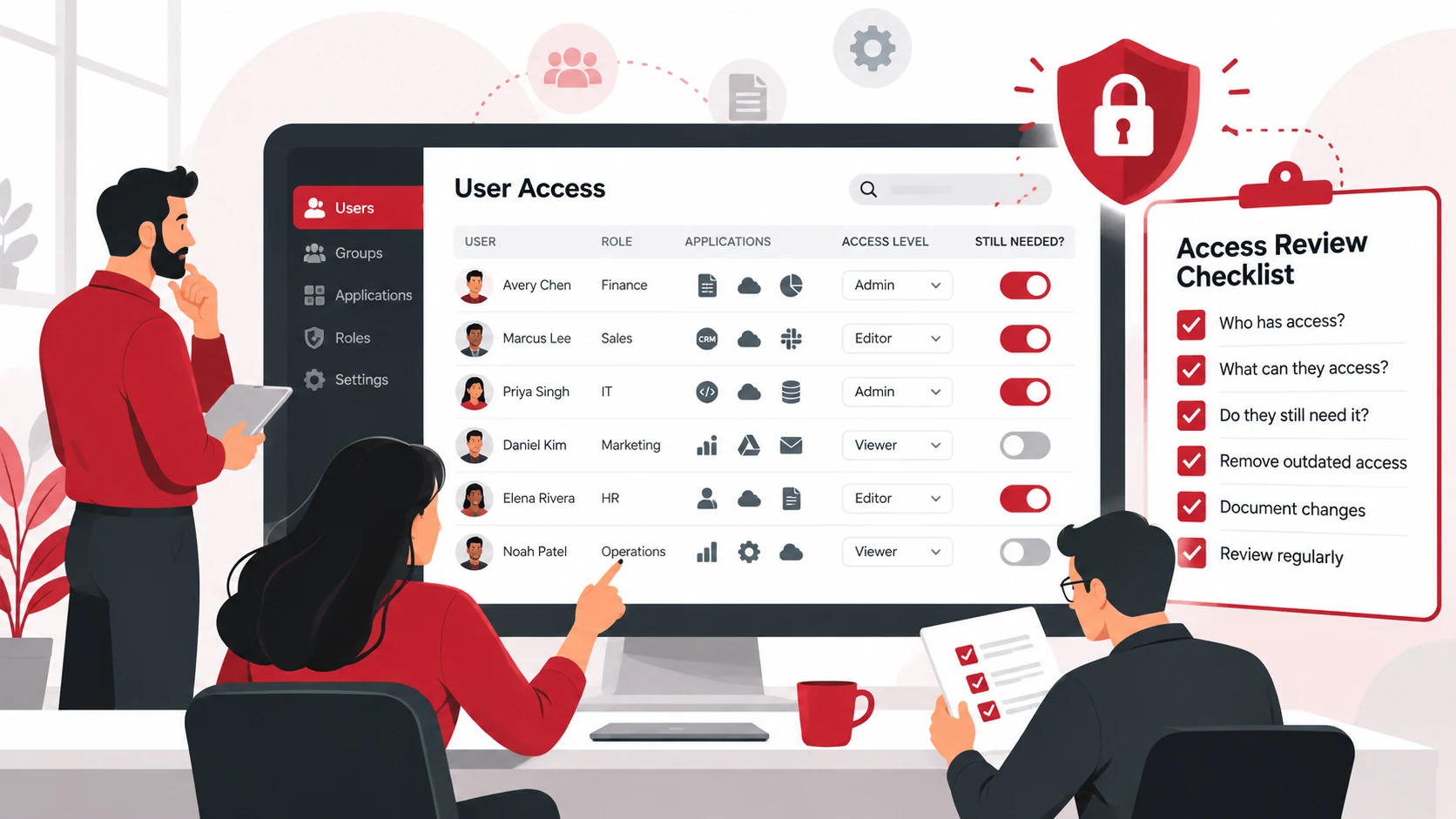
A review should answer three basic questions:
- Who has access?
- What can they access?
- Do they still need that access?
Businesses can apply these reviews to cloud platforms, business applications, internal systems, and other accounts that contain company information.
User Access Review Checklist
Use the following checklist to review business accounts and identify access that may need to be changed or removed.
1. Review All Active User Accounts
Start by creating a list of active accounts across your business systems.
Check whether:
- Each account belongs to a current employee.
- The account is still being used.
- Duplicate accounts exist.
- Inactive accounts are still enabled.
Disable or remove accounts that are no longer needed.
2. Confirm User Roles
Check whether each employee’s access matches their current job responsibilities.
Employees may change departments or take on new responsibilities over time. Their access should be updated when their role changes.
For example, an employee who moves from finance to marketing may no longer need access to financial systems.
3. Review User Permissions
Check the specific permissions assigned to each user.
Look for access that allows users to:
- View sensitive information
- Edit important data
- Delete files or records
- Change system settings
- Manage other users
Users should have the permissions required for their current responsibilities without unnecessary access to systems or data.
Businesses can also use a file sharing permissions audit to identify outdated or unnecessary access to important files.
4. Check Administrator Accounts
Administrator accounts have greater control over business systems, so they deserve additional attention during an access review.
Check:
- Who has administrator access
- Whether each administrator still needs those privileges
- Whether unnecessary administrative permissions can be removed
- Whether inactive administrator accounts remain enabled
Limiting unnecessary administrative access can reduce the potential impact if an account is compromised.
5. Check Former Employees and Inactive Users
Review accounts belonging to former employees, contractors, and inactive users.
Make sure accounts are disabled or removed when access is no longer required.
Review these accounts as part of the employee offboarding process to make sure access is removed when it is no longer needed.
6. Review Shared Accounts
Identify accounts that are used by multiple employees.
Whenever possible, businesses should use individual accounts instead of shared credentials. Individual accounts make it easier to assign permissions and determine which user performed an action.
If a shared account is necessary, its access should be reviewed regularly and its credentials should be managed securely.
7. Review Third-Party and External Users
Businesses may provide access to vendors, contractors, consultants, or other external users.
Check whether each external user still needs access and whether their permissions remain appropriate.
Remove access when a project ends or the business relationship no longer requires it.
8. Document Access Changes
Keep a record of important access changes made during the review.
Document:
- Accounts reviewed
- Permissions removed or changed
- Accounts disabled
- Access approved to remain
- Unresolved access issues
Documentation makes future reviews easier and provides a record of how access decisions were handled.
How Often Should Businesses Review User Access?
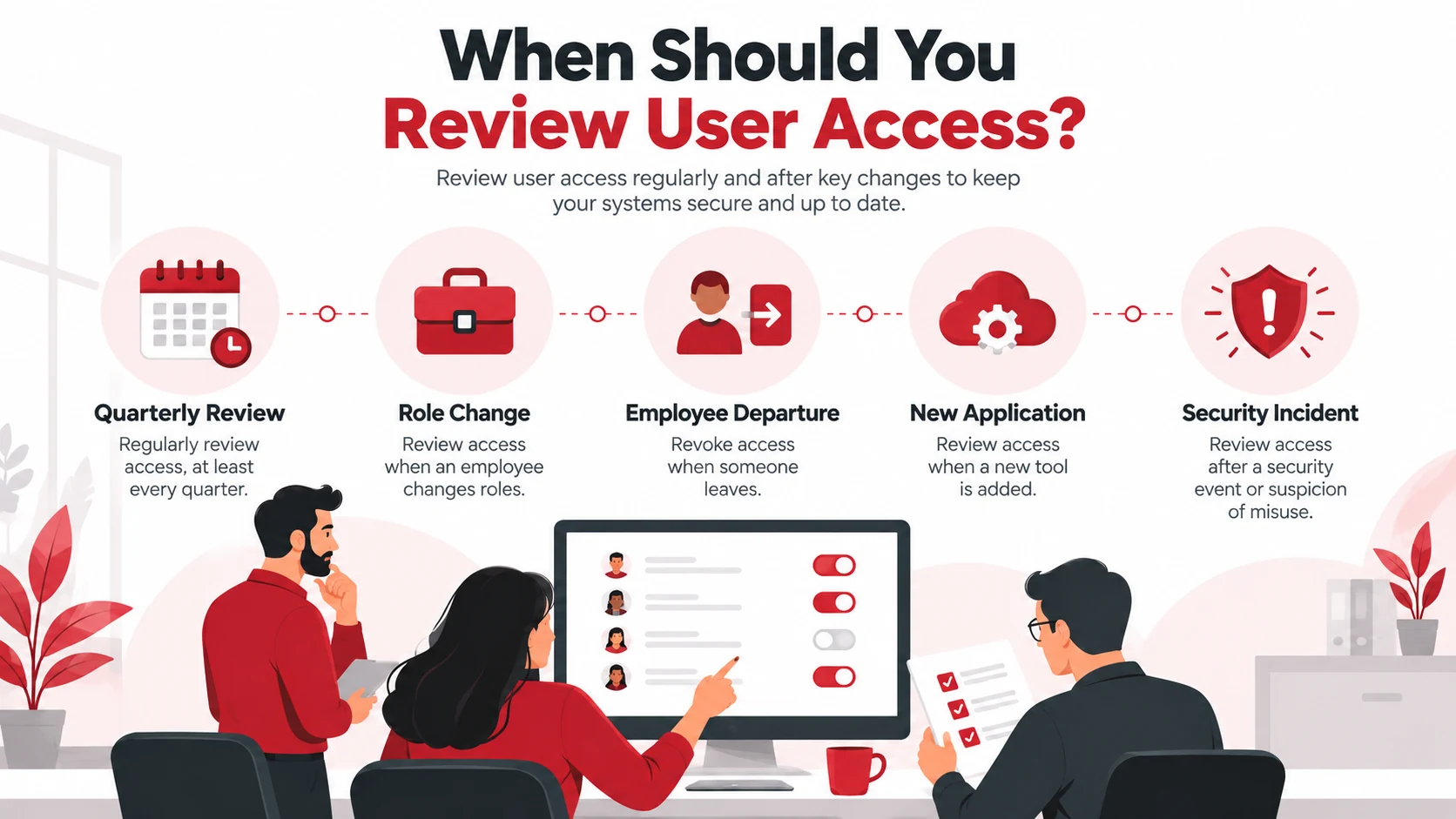
Businesses should establish a regular review schedule based on the sensitivity of their systems and how frequently user access changes. Quarterly reviews may be appropriate for some environments, while systems containing sensitive information or frequent access changes may require more frequent reviews.
Additional reviews should take place after major changes, such as:
- An employee changing roles
- An employee leaving the business
- A new application being introduced
- Responsibilities changing
- A security incident occurring
Regular reviews help prevent outdated permissions from accumulating over time.
Common User Access Review Mistakes
Common mistakes can leave unnecessary access in place even after a review has been completed.
Businesses may:
- Review accounts but ignore individual permissions
- Leave former employee accounts active
- Give too many users administrator privileges
- Forget about contractor and third-party access
- Keep shared accounts without regular reviews
- Fail to document access changes
- Review access only after a security incident
A review should look at both who has an account and what that account can do.
What to Do After a User Access Review
Finding unnecessary access is only the first step. Businesses should take action on the issues identified during the review.
A simple process is:
- Identify unnecessary or outdated access.
- Confirm the access is no longer required.
- Remove or modify the permissions.
- Disable accounts that are no longer needed.
- Document the changes and follow up on unresolved issues.
This helps turn an access review into an ongoing security practice rather than a one-time checklist.
How Managed IT Services Can Help With User Access Reviews
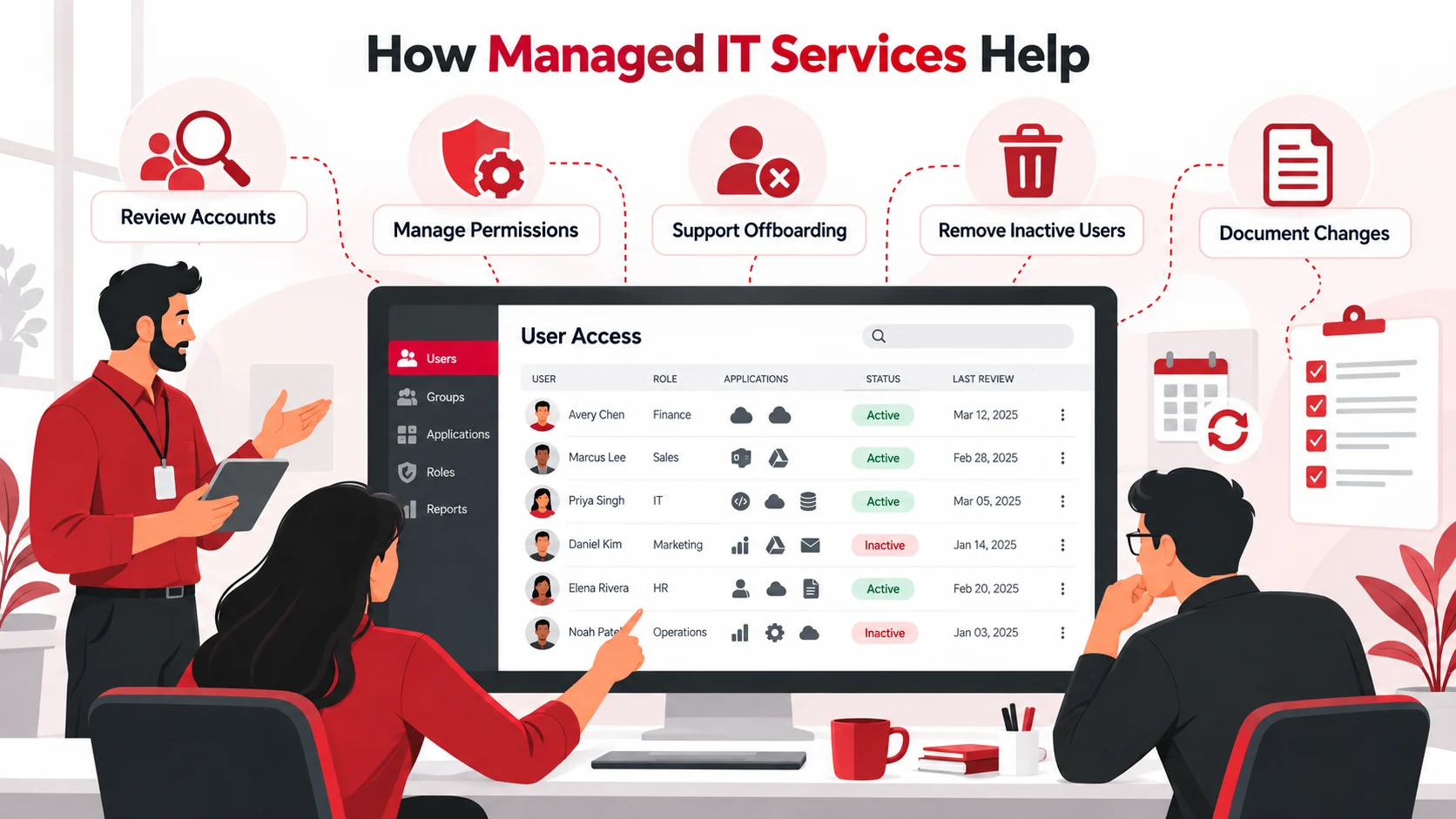
Regular access reviews can become difficult as a business adds more employees, applications, and cloud systems.
A managed IT service can help businesses:
- Review user accounts and permissions
- Identify excessive access
- Manage employee onboarding and offboarding
- Review administrator privileges
- Remove inactive accounts
- Support recurring access reviews
- Document access changes
Businesses that need broader security support can also consider cybersecurity services to strengthen access controls and other security processes.
Conclusion
A user access review helps businesses make sure the right people have the right access at the right time. Reviewing accounts and permissions regularly can help identify inactive users, excessive privileges, and outdated access.
A consistent review should cover active users, roles, permissions, administrator accounts, former employees, external users, and shared accounts. Making access reviews part of regular IT management helps businesses maintain better control over who can access their systems and data.
FAQs
What is a user access review?
A user access review is a process for checking who has access to business systems and what permissions they have. It helps businesses identify and remove access that is no longer required.
What should be included in a user access review?
A review should include active user accounts, employee roles, permissions, administrator access, former employees, inactive users, shared accounts, and third-party access.
How often should businesses review user access?
Businesses should establish a review schedule based on their systems, data sensitivity, and how often access changes. Additional reviews should follow employee departures, role changes, new systems, and security incidents.
Why should administrator accounts be reviewed?
Administrator accounts have greater control over systems and settings. Reviewing them helps businesses identify unnecessary administrative privileges and reduce excessive access.
What should businesses do with inactive user accounts?
Inactive accounts that are no longer needed should generally be disabled or removed. Businesses should also confirm that associated permissions, sessions, or third-party access are no longer active.