Data corruption occurs when information becomes damaged, altered, or unreadable. It can affect anything from a simple document to an entire database. In some cases, it’s obvious—a file won’t open, or your system freezes. The damage is hidden in others until critical data is needed and no longer works as expected.
This issue can happen anywhere data is stored or transferred—on a local device, a cloud system, or a shared network. Causes range from power outages and failing hardware to malware infections and software errors. Once corruption sets in, recovery can be difficult or incomplete.
Ready to protect your organization’s data and avoid costly interruptions? Explore data backup and disaster recovery services that keep your systems running and protect your information.
Types of Data Corruption
Data corruption doesn’t always look the same. Some issues are caused by physical damage to your hardware. Others are triggered by software problems or malware. Most cases fall into one of two categories: physical corruption or logical corruption. Understanding the difference can help you respond faster and prevent future problems.
1. Physical Corruption
This happens when the hardware itself becomes damaged. A failing hard drive, broken cables, overheating, or wear over time can all lead to this type of corruption. When it occurs, the data stored on the affected device may become unreadable or completely lost. Even small amounts of physical damage, like bad sectors on a disk, can prevent a file from loading correctly.
You might notice this type of corruption if files won’t open, your system makes clicking or grinding noises, or backups suddenly fail. Often, once physical corruption starts, it spreads fast if left alone.
2. Logical Corruption
Logical corruption happens on the software side. It usually doesn’t involve broken hardware. Instead, it comes from software bugs, operating system crashes, bad updates, or file system errors. Malware and viruses can also cause logical corruption by rewriting files or interfering with how your system saves data.
The file may still exist, but its content is wrong or incomplete. For example, a report might open fine but show the wrong numbers, or a program might crash whenever you try to load a specific file.
Causes of Data Corruption
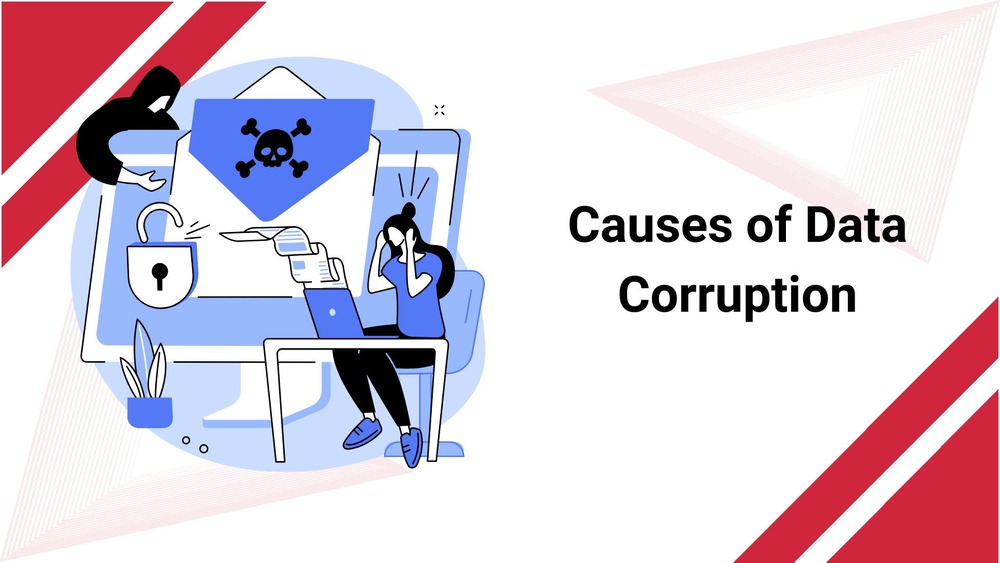
Data corruption doesn’t happen randomly—it usually stems from avoidable issues. Some are technical. Human mistakes cause others. In many cases, a single weak point in your process can affect everything downstream.
Below are some of the most common reasons why files and systems become corrupted:
Power Failures
Power cuts during file transfers, software installations, or system updates can leave files incomplete. The system doesn’t have time to close the file correctly when the power drops before the process finishes.
That’s when you end up with broken files that won’t open—or worse, missing system components. Unstable power sources or unprotected outlets increase this risk, especially in older buildings or areas with frequent outages.
Failing Hardware
Hard drives don’t last forever. Over time, their internal parts wear out. The same goes for RAM, motherboards, and cables. When parts start to fail, the data stored on them becomes vulnerable.
You might notice that files load slowly, disappear altogether, or behave strangely. Overheating is another silent threat. When systems run hot for too long, they can warp memory cells or damage storage disks, corrupting everything they hold.
Software Glitches
Not every update is perfect. Software bugs, broken patches, or improper installation shutdowns can create data issues.
If your application crashes while writing data, like during an autosave, your file may be unreadable the next time you open it. Programs that manage large amounts of information, such as accounting software or CRM systems, are susceptible to these failures.
Malware or Viruses
Some malicious software is built to steal data, while others are designed to break it. Once inside your system, malware can overwrite files, erase folders, or infect software that manages how your data is stored.
Even if the virus doesn’t directly delete anything, it can create long-term problems by turning off security updates or damaging backup routines.
Interrupted Transfers
Any time you move data—especially over a network—there’s a chance something goes wrong. The file can become unreadable if your connection drops or the receiving system crashes during the transfer.
This is a big problem when sharing large files or syncing folders between devices. Without automatic recovery tools or transfer checks, you may not realize something went wrong until later.
Human Error
Mistakes are one of the most significant sources of data loss. Deleting the wrong folder, overwriting essential files, or shutting down a device while saving data—these happen more often than people admit.
Sometimes, a file is saved under the wrong name or format, making it unusable. Even experienced users can cause corruption with one rushed click or a misunderstood system prompt.
Identifying Corrupted Data
You can’t always spot data corruption right away. Sometimes it’s clear—a file won’t open, or your system crashes out of nowhere. The damage is often buried deep inside your files, and the signs are subtle.
Watch for these common red flags:
- Files that refuse to open or generate unexpected error messages
- Applications that freeze, crash, or behave unpredictably
- Scrambled characters, missing data, or formatting errors in documents
- Databases that load slowly, display incorrect results, or fail to process queries.
- Systems that take longer to boot or never start at all
- File sizes that seem too large or far too small for the content they should hold
But visual cues aren’t always enough. In many IT environments, especially those handling large amounts of data, spotting corruption early requires more thorough checks. That’s where error-detection tools come in.
Organizations often use methods like checksums and parity bits to detect data changes. These tools create a kind of digital fingerprint when data is saved. Later, they compare the current version against the original. These checks can raise a red flag if anything has changed, even a single bit. It’s a fast way to catch problems before they grow.
In more advanced systems, these integrity checks run automatically in the background. If an issue is found, the system may attempt to fix it or flag it for manual review. Either way, these tools give you a head start. They let you act before corrupted data spreads or breaks essential processes.
The Impact of Data Corruption on Businesses and Individuals
For Businesses
Corrupted data can delay operations, stop sales, or block customer access. A corrupted inventory list might mean sending the wrong products. A damaged invoice file could affect payments. Sometimes, it can lead to compliance issues, fines, or legal disputes.
Beyond lost files, there’s the cost of recovery. IT teams may spend hours—or days—trying to restore systems. Downtime also means lost productivity, missed deadlines, and unhappy customers.
For Individuals
Data corruption isn’t just a business issue. It can also hit personal files. Family photos, school projects, and tax records—once these are damaged, they may be hard to recover. If you didn’t back them up, they could be gone forever.
Corruption also affects device performance. Slow systems, failed apps, and unexpected crashes are common signs.
Preventive Measures Against Data Corruption
Data corruption can happen fast, but you can lower the risk with the proper habits, tools, and checks. Here are key steps you can take to protect your data and systems:
1. Back Up Regularly and Automatically
Always keep multiple backups. Use external hard drives and cloud-based services. Set backups to run on a schedule—daily, weekly, or in real time—so you never miss a backup. Regular backups are your safety net when corruption strikes.
2. Use Reliable Hardware and Software
Invest in high-quality, well-reviewed devices and business-grade software. Replace old drives or computers before they fail. Choose stable operating systems and programs that support data integrity checks and error handling.
3. Keep Systems Patched and Updated
Outdated software can be a weak spot. Automated patch management is used to apply security fixes and bug updates on time. This helps prevent system crashes and vulnerabilities that can lead to data damage.
4. Secure Data with Encryption Protocols
Encryption keeps your data safe, even if files get exposed or stolen. Use encryption methods that include integrity checks—they confirm whether the file has been changed or corrupted during storage or transfer.
5. Scan for Malware with Strong Antivirus Tools
Corrupted data often starts with malware. Use a trusted antivirus program and keep it up to date regularly. Ensure your protection covers file scans, web traffic, and email attachments.
6. Watch Out for Phishing and Social Engineering
Teach your team how to recognize phishing emails and suspicious links. One wrong click can install malware that damages or steals data. Awareness is a frontline defense.
7. Limit Access and Set Permissions
Too many users edit duplicate files, which increases the risk of errors. Limit access to sensitive data. Set permissions based on roles to reduce accidental changes or deletions.
8. Test Software and Updates in a Safe Environment
Test it on a non-critical device before rolling out any update or new software. This helps catch errors or compatibility issues before they reach your entire network.
9. Use File Verification Tools
Checksums and similar tools confirm that files haven’t been altered. They help spot corruption early, especially when moving or backing up large data.
10. Perform Routine Data Validation
Set up regular checks using data auditing tools to scan for dirty, incomplete, or inconsistent data. These routines help prevent minor issues from snowballing into major problems.
Final Thoughts
Data corruption doesn’t always announce itself. Sometimes it’s a slow buildup—an unnoticed error here, a small failure there—until a critical file is gone or a system crashes. Whether managing a business or protecting personal data, the best approach is prevention.
Back up your files regularly, monitor your systems for signs of failure, keep your hardware clean and your software up to date, and, when you need extra support, work with a partner who knows how to keep things running.
Adivi offers real help for businesses that can’t afford data loss or downtime. Their data backup and disaster recovery services take the pressure off your team by handling planning, monitoring, and recovery for you. From small businesses to larger operations, Adivi brings a sense of order and safety to your systems.
If you want to protect your data and reduce the risk of costly interruptions, explore how Adivi’s backup and disaster recovery services can help you stay one step ahead.
FAQs
Can corrupted data be fixed?
Yes, but not always. Minor corruption can sometimes be repaired with file recovery tools or system utilities. You may need to restore from a clean backup or consult a data recovery service for severe damage.
Is cloud storage safe from data corruption?
Cloud systems lower the risk, but they’re not foolproof. Sync errors, interrupted uploads, or overwriting files can still cause corruption. Use version history and external backups for extra protection.
What tools help detect data corruption early?
Checksums, hash values, and parity bits are commonly used. These tools create a digital signature for files, allowing systems to detect unexpected changes.
How often should I back up my data?
It depends on how critical the data is. A weekly backup may be enough for personal files. For businesses or fast-changing environments, daily or hourly backups are safer.
What should I do if I suspect data corruption immediately?
To prevent the problem from getting worse, stop using the affected system. Run antivirus scans, check for recent changes, and, if possible, restore from your latest backup.
Can power outages cause file corruption?
Yes. If the system loses power while saving or updating files, it can interrupt the process, leaving files incomplete or damaged.
Do external drives get corrupted easily?
They can, especially if disconnected while data is being written. Always eject drives safely, and avoid using them on unprotected or infected systems.
Can corrupted data spread to other files or systems?
Not directly. However, if corruption originates from malware or a faulty process, it can continue to affect new files over time. That’s why it’s essential to fix the root cause quickly.
How do I know if a backup is safe from corruption?
Use file verification tools and regularly test your backups. Don’t wait until disaster strikes—ensure you can restore clean copies when needed.
Should I use both cloud and local backups?
Yes. This is called a hybrid backup strategy. It gives you fast local access and adds cloud safety. If one fails, the other is there to recover from.